Test Configurations
LEGACY — Shiplight Cloud v1
This page documents Shiplight Cloud v1 (app.shiplight.ai), which is no longer the current product. For the current cloud platform, see Shiplight Cloud.
Test configurations enable you to run the same test across multiple environments with different settings. Each configuration represents a unique combination of environment, test account, URL path, and other execution settings.
Table of Contents
- What are Environment Configs?
- Configuration Elements
- Managing Configurations
- Using Multiple Configurations
- Best Practices
What are Environment Configs?
Environment configs allow you to:
- Run the same test in different environments (staging, production, etc.)
- Use different test accounts for each environment
- Customize the starting URL path per environment
- Set a default environment for the Test Editor
Configuration Elements
Each test configuration consists of:
Environment
The target environment where the test will run. You must configure environments in Settings before creating test configurations.
Starting URL
- Base URL: Automatically populated from the selected environment
- Path: Optional URL path to append (e.g.,
login,dashboard) - The full URL is constructed as:
{Environment URL}/{Path}
Test Account
Choose how test accounts are assigned for this configuration:
- None: No authentication required
- Any: System selects randomly from available accounts for this environment
- Specific: Manually select one or more test accounts
- Global accounts (no environment scope) are available for all environments
- Environment-specific accounts only appear for their designated environment
- If multiple accounts are selected, one will be randomly used at test run time
Hooks
Configure templates to run automatically before or after your test:
- Before Test: Runs after login, before main test steps (e.g., accept cookie consent)
- After Test: Runs after all test steps complete (e.g., clean up, logout)
For detailed Hook information, see the Hooks documentation.
Test Editor Environment
Mark a configuration as the default environment used when editing test steps in the Test Editor. This setting:
- Enables interactive debugging against this environment
- Only one configuration can be the Test Editor environment at a time
- Helps ensure test development happens in the correct environment
Managing Configurations
Adding a Configuration
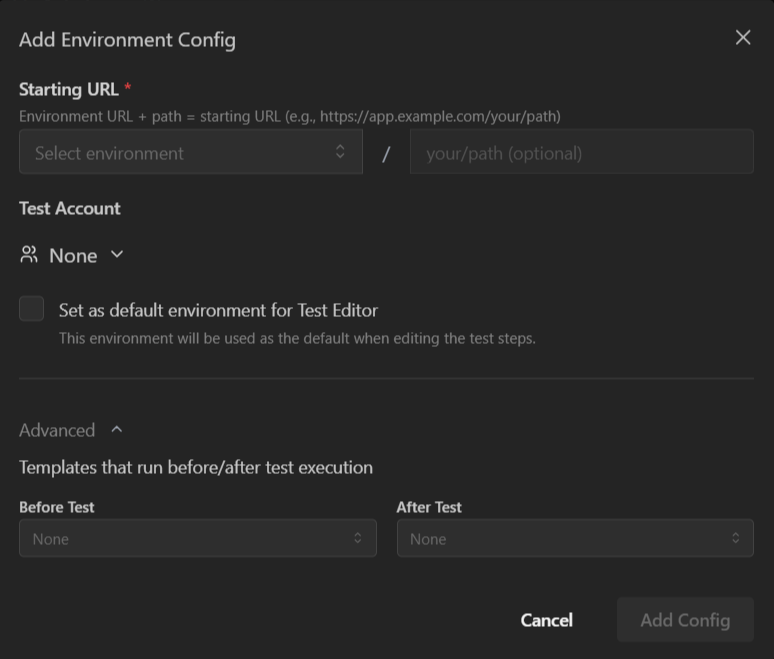
- Navigate to the Settings tab in the test editor
- Click Add Environment Config
- Configure the following:
- Select an Environment (only unconfigured environments are shown)
- Enter an optional URL Path
- Select Test Account type and specific accounts if needed
- Enable Set as default environment for Test Editor if this should be used as the debug environment
- (Optional) Click Advanced to configure:
- Templates that run before and after test execution (only existing templates can be selected)
- Click Add Config
Editing a Configuration
- Click on any configuration card to open the edit modal and update its settings
- Click the 3-dot menu on a configuration to access additional actions:
- Select Edit to modify the configuration
- Select Set as Test Editor Env to mark this configuration as the default environment for editing and debugging tests in the Test Editor
- Select Delete to remove the configuration
Warning
Deleting a configuration may affect scheduled tests or test suites that rely on it.
Using Multiple Configurations
Use Cases
Cross-Environment Testing
- Configure the same test for staging, production, and QA environments
- Each environment can use different test accounts
- Run comprehensive validation across all environments
Multi-Account Testing
- Test with different user roles (admin, standard user, guest)
- Verify permissions and access controls
- Ensure features work correctly for all user types
Path Variations
- Test different entry points of the same flow
- Start from
/loginvs/signupvs direct deep links - Validate behavior from various starting states
Best Practices
Configuration Strategy
Start Simple
- Begin with one configuration for your primary environment
- Add more as testing needs expand
- Don't create configurations you won't use
Naming and Organization
- Use clear environment names (Staging, Production, QA)
- Keep test account names descriptive
- Document special configuration requirements
Test Editor Environment
- Set this to your development or staging environment
- Avoid using production as the Test Editor environment
- Change it when actively debugging specific environment issues
Maintenance
Regular Review
- Remove unused configurations
- Update test accounts when credentials change
- Verify environment URLs are current
Test Account Management
- Keep test accounts active and valid
- Use environment-specific accounts when possible
- Coordinate with your team on shared test accounts
Schedule Coordination
- Review which configurations are included in schedules
- Ensure configurations match your testing strategy
- Adjust frequency based on environment stability