Test Editor Overview
LEGACY — Shiplight Cloud v1
This page documents Shiplight Cloud v1 (app.shiplight.ai), which is no longer the current product. For the current cloud platform, see Shiplight Cloud.
The Shiplight AI Test Editor is a powerful, AI-enhanced interface for creating, editing, and debugging automated tests. It provides both natural language and code-based test authoring capabilities with real-time execution and debugging features.
Table of Contents
- Accessing the Test Editor
- Editor Interface Overview
- Test Structure
- Key Features
- Editing Workflow
- Status Management
- Best Practices
- Keyboard Shortcuts
- Next Steps
Accessing the Test Editor
Navigate to the Test Editor through multiple entry points:
- Automatic Redirect - Opens automatically after creating a new test
- Tests Page - Click on any test from the main Tests page
- Test Suites - Click on a test within a suite
- Quick Access - Use the arrow (→) button wherever tests are listed
- Direct URL - Navigate to
/tests/{testId}
Editor Interface Overview
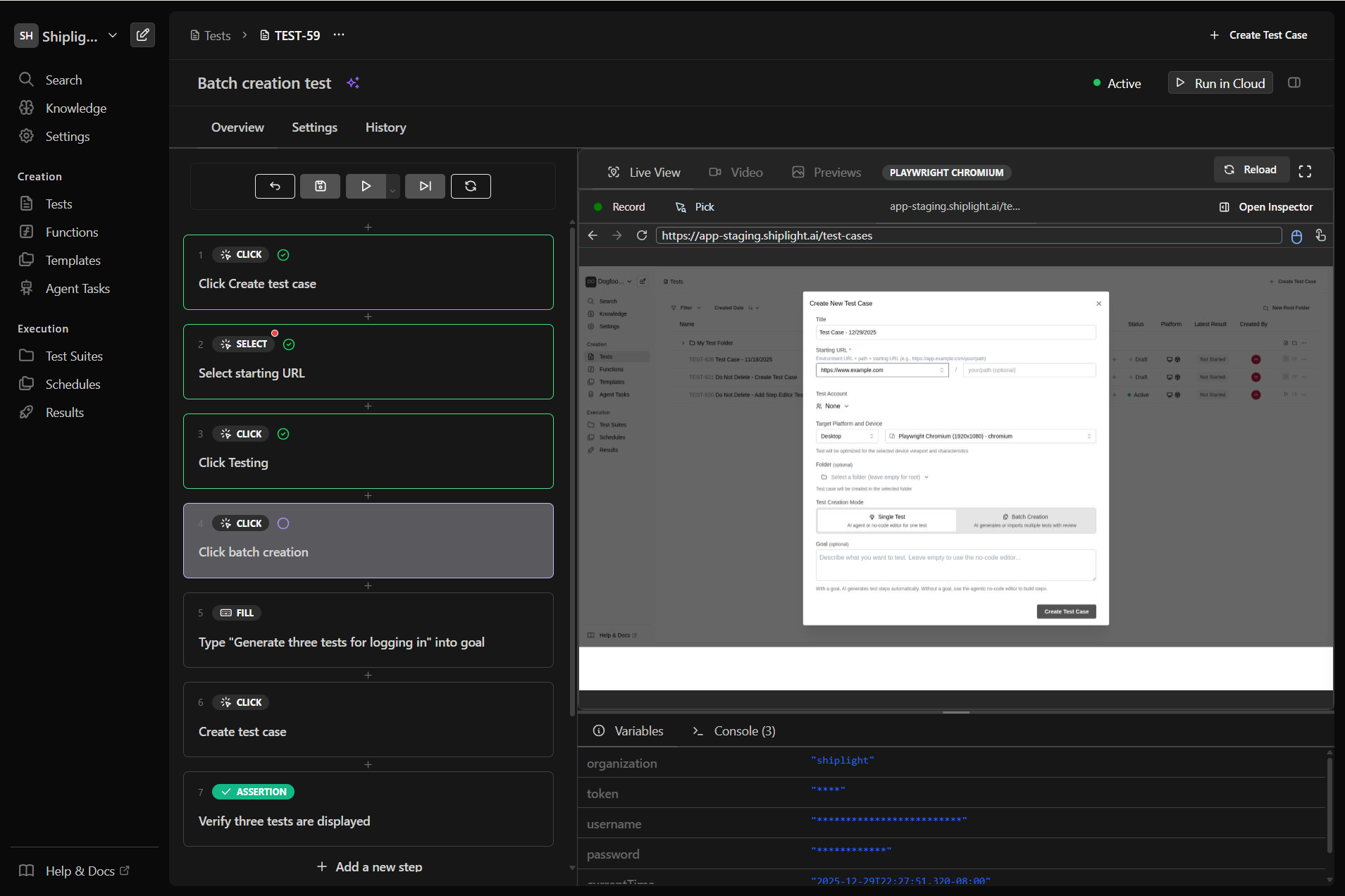
Header Section
The test editor header provides essential test information and controls:
- Test Name - Click to edit the test name inline
- Status Badge - Shows current test status:
Draft- In development, excluded from scheduled runsActive- Enabled for automated executionGenerating- AI is creating test steps
- Environment Selector - Choose which environment to run the test in
- Actions Menu - Additional options (clone, delete, export)
Main Editor Area
The editor is divided into two resizable panels:
Left Panel - Test Flow Editor
- Visual representation of your test steps
- Drag-and-drop step reordering
- Inline editing capabilities
- AI mode toggle for natural language input
- Nested structure support (steps, conditions, loops)
Right Panel - Live View & Information
- Live Tab - Real-time browser view during debugging
- Preview Tab - Screenshots from test execution
- Console Tab - Execution logs and debug output
- Context Tab - Current test variables and state
Test Structure
Test Flow
A test flow contains:
- Main Statements - Your primary test logic
- Teardown Statements - Optional cleanup steps
- Metadata - Goal, URL, and completion status
Step Types
Each step in your test can be one of these types:
Action Step - A single operation (click, type, assert, etc.)
- Contains the actual action to perform
- The leaf node of your test structure
Group - A container for multiple steps
- Groups related steps together
- Can be collapsed/expanded for organization
- Contains nested statements
If/Else Step - Conditional branching
- Evaluates a condition
- Executes different paths based on result
Loop Step - Repeating operations
- While loop that continues based on condition
- Contains body statements to repeat
Teardown Section
Optional cleanup steps that run after the main test:
- Always executes (even on test failure)
- Useful for resetting state
- Contains the same step types as main flow
- Separate from main statements
Key Features
Natural Language & Code Modes
Natural Language Mode (AI-Powered)
- Write test steps in plain English
- AI automatically converts to executable actions
- Ideal for non-technical users
- Context-aware suggestions
Code Mode (JavaScript)
- Direct Playwright code editing
- Full access to browser APIs
- Custom logic implementation
- Advanced automation scenarios
AI Mode vs Fast Mode
Fast Mode (Non-AI)
- Uses cached actions for optimal performance
- Executes pre-generated Playwright commands
- Best for stable DOM elements and consistent UIs
- Faster execution speed
- Relies on fixed element selectors/locators
- Less flexible but more performant
AI Mode (Dynamic Mode)
- Evaluates descriptions in real-time against current browser state
- Dynamically determines the best action and element to target
- Handles dynamic element IDs and changing locators
- More flexible and adaptive to UI changes
- Slower execution due to real-time analysis
- Ideal for modern web apps with dynamic content
Recording
Interactive Test Creation
- Record browser interactions in real-time
- Automatically captures clicks, typing, navigation, and form interactions
- Converts user actions into test steps automatically
- Available during debugging sessions via Live View toolbar
Benefits:
- Rapid test creation by performing actions naturally
- No need to write step descriptions manually
- Captures complex user workflows accurately
- Ideal for exploratory testing and reproducing bugs
Test Information Panels
Goal Section
- Document the test's purpose
- Editable at any time
- Used by AI for context
- Helps team understand test intent
Labels
- Organize tests with custom tags
- Filter and search by labels
- Apply multiple labels per test
- Color-coded for quick identification
Latest Run Results
- Last execution status
- Execution time and date
- Link to full run details
- Video recording (if available)
Editing Workflow
1. Adding Steps
Click "Add a new step" button to insert steps:
- Choose from action type dropdown
- Enter description or code
- Configure step-specific options
- AI auto-suggests next steps
Insert Between Steps using the + button:
- Maintains test flow
- Automatically adjusts numbering
- Preserves nested structure
2. Modifying Steps
Click the ⋯ menu on any step to access four groups of options:
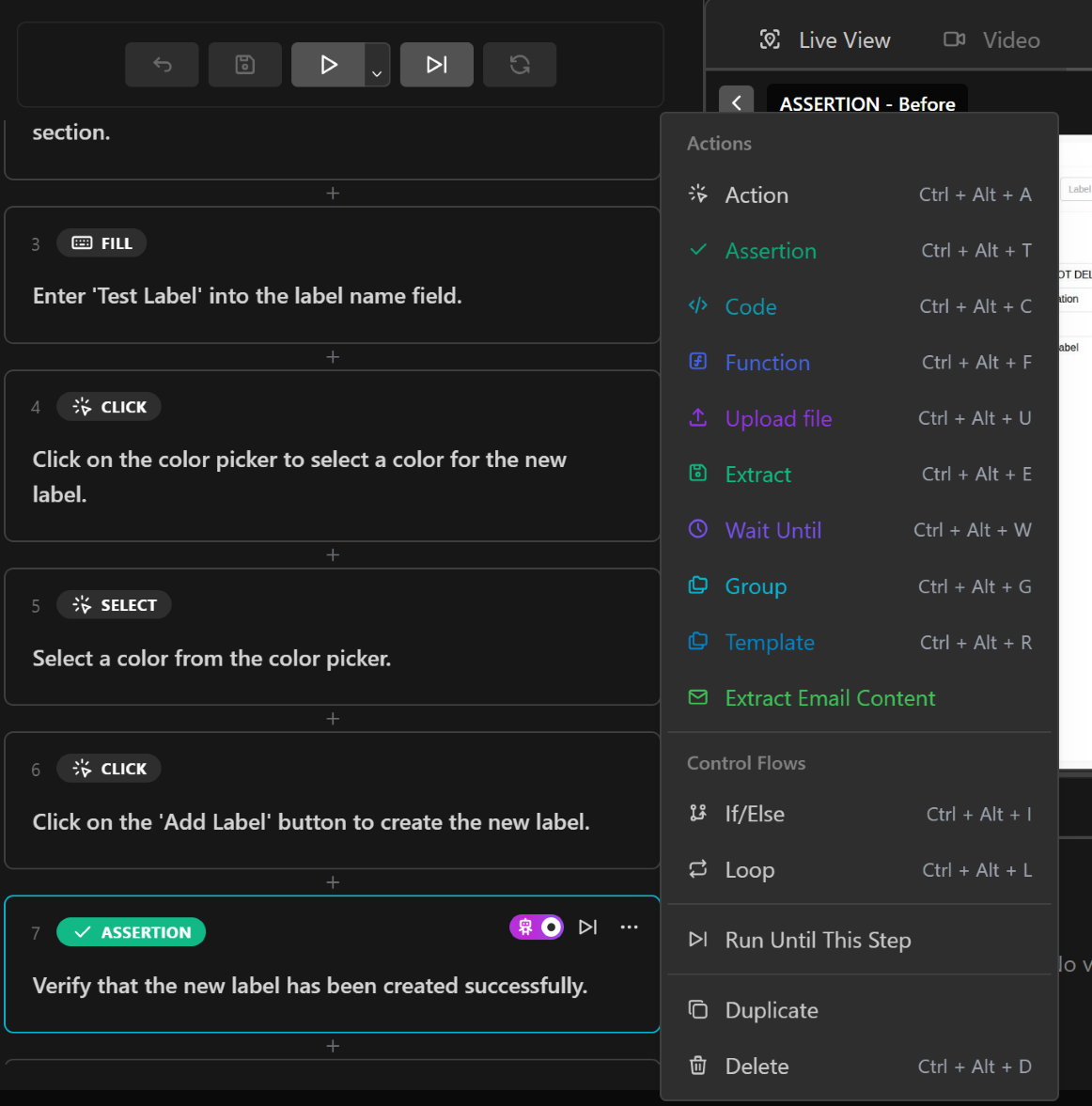
Actions - Convert to different action types:
- Action, Assertion, Code, Function, Upload File, Group
Control Flows - Convert to control structures:
- If/Else, Loop
Execution - Debug controls:
- Run until here
Edit Operations:
- Duplicate step
- Delete step
3. Organizing Steps
Drag and Drop to reorder:
- Visual indicators show valid drop zones
- Maintains parent-child relationships
- Updates references automatically
Group Related Steps:
- Create step containers
- Add descriptive group names
- Collapse/expand for clarity
- Nest multiple levels deep
Status Management
Test Status Types
Draft
- Development and testing phase
- Not included in scheduled runs
- Can still be run manually
- No notifications on failure
Active
- Production-ready test
- Included in test suites and schedules
- Triggers notifications on failure
- Monitored for reliability
Disabled
- Temporarily excluded from execution
- Preserves test configuration
- Quick re-enable when needed
- Useful for maintenance windows
Status Transitions
Toggle status using the dropdown in the header:
- Create test → Starts as
Draft - Complete development → Change to
Active - Maintenance needed → Set to
Disabled - Updates complete → Return to
Active
Best Practices
Test Design
✅ DO:
- Keep tests focused on single features
- Use descriptive step descriptions
- Add assertions to verify outcomes
- Implement proper wait strategies
- Use teardown for cleanup
❌ DON'T:
- Create overly complex test flows
- Hard-code environment-specific values
- Skip error handling
- Ignore flaky test warnings
- Duplicate test logic
Performance Tips
- Minimize Waits - Use smart waits instead of fixed delays
- Batch Operations - Group related actions together
- Reuse Functions - Extract common patterns
- Optimize Selectors - Use stable, efficient selectors
- Parallel Execution - Design tests for independence
Maintenance
- Regular Reviews - Update tests with UI changes
- Monitor Flakiness - Address intermittent failures
- Version Control - Save checkpoints before major changes
- Documentation - Keep goals and descriptions current
- Refactoring - Simplify complex flows periodically
Keyboard Shortcuts
When a statement is selected, you can use these shortcuts:
| Shortcut | Action |
|---|---|
Ctrl + Alt + A | Convert to Action |
Ctrl + Alt + T | Convert to Assertion |
Ctrl + Alt + C | Convert to Code |
Ctrl + Alt + F | Convert to Function |
Ctrl + Alt + U | Convert to Upload File |
Ctrl + Alt + E | Convert to Extract |
Ctrl + Alt + L | Convert to Login |
Ctrl + Alt + W | Convert to Wait Until |
Ctrl + Alt + G | Convert to Group |
Ctrl + Alt + R | Convert to Template |
Ctrl/Cmd + D | Duplicate statement |
Next Steps
- Configure Test Environments - Set up multiple configurations for different environments
- Learn about Actions & Steps - All available action types and how to use them
- Explore Recording - Interactive test creation
- Explore AI Features - AI-powered test creation and maintenance
- Master Debugging Tools - Interactive debugging and troubleshooting
- Discover Advanced Features - Variables, functions, and more