Test Configurations
Test configurations enable you to run the same test across multiple environments with different settings. Each configuration represents a unique combination of environment, test account, URL path, and other execution settings.
Table of Contents
- What are Environment Configs?
- Configuration Elements
- Managing Configurations
- Using Multiple Configurations
- Best Practices
What are Environment Configs?
Environment configs allow you to:
- Run the same test in different environments (staging, production, etc.)
- Use different test accounts for each environment
- Customize the starting URL path per environment
- Set a default environment for the Test Editor
Configuration Elements
Each test configuration consists of:
Environment
The target environment where the test will run. You must configure environments in Settings before creating test configurations.
Starting URL
- Base URL: Automatically populated from the selected environment
- Path: Optional URL path to append (e.g.,
login,dashboard) - The full URL is constructed as:
{Environment URL}/{Path}
Test Account
Choose how test accounts are assigned for this configuration:
- None: No authentication required
- Any: System selects randomly from available accounts for this environment
- Specific: Manually select one or more test accounts
- Global accounts (no environment scope) are available for all environments
- Environment-specific accounts only appear for their designated environment
- If multiple accounts are selected, one will be randomly used at test run time
Hooks
Configure templates to run automatically before or after your test:
- Before Test: Runs after login, before main test steps (e.g., accept cookie consent)
- After Test: Runs after all test steps complete (e.g., clean up, logout)
For detailed Hook information, see the Hooks documentation.
Test Editor Environment
Mark a configuration as the default environment used when editing test steps in the Test Editor. This setting:
- Enables interactive debugging against this environment
- Only one configuration can be the Test Editor environment at a time
- Helps ensure test development happens in the correct environment
Managing Configurations
Adding a Configuration
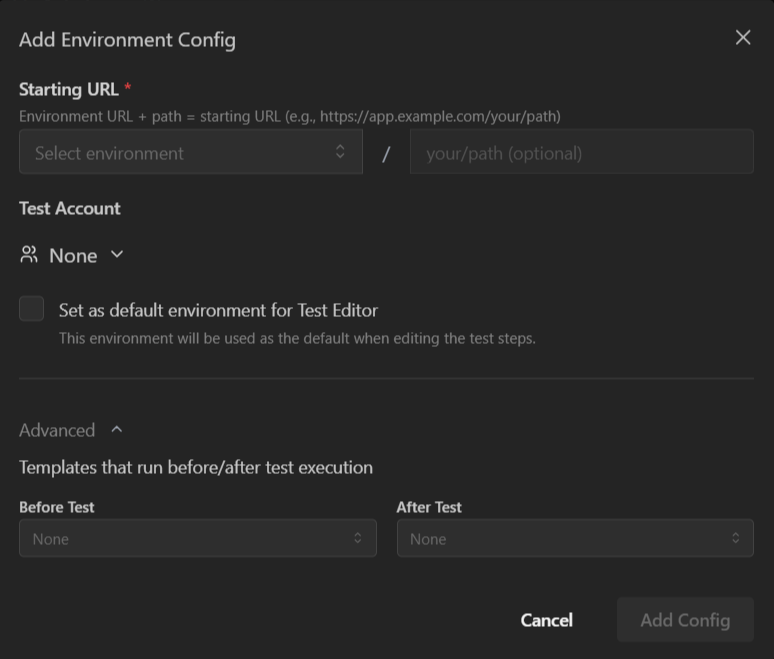
- Navigate to the Settings tab in the test editor
- Click Add Environment Config
- Configure the following:
- Select an Environment (only unconfigured environments are shown)
- Enter an optional URL Path
- Select Test Account type and specific accounts if needed
- Enable Set as default environment for Test Editor if this should be used as the debug environment
- (Optional) Click Advanced to configure:
- Templates that run before and after test execution (only existing templates can be selected)
- Click Add Config
Editing a Configuration
- Click on any configuration card to open the edit modal and update its settings
- Click the 3-dot menu on a configuration to access additional actions:
- Select Edit to modify the configuration
- Select Set as Test Editor Env to mark this configuration as the default environment for editing and debugging tests in the Test Editor
- Select Delete to remove the configuration
Warning
Deleting a configuration may affect scheduled tests or test suites that rely on it.
Using Multiple Configurations
Use Cases
Cross-Environment Testing
- Configure the same test for staging, production, and QA environments
- Each environment can use different test accounts
- Run comprehensive validation across all environments
Multi-Account Testing
- Test with different user roles (admin, standard user, guest)
- Verify permissions and access controls
- Ensure features work correctly for all user types
Path Variations
- Test different entry points of the same flow
- Start from
/loginvs/signupvs direct deep links - Validate behavior from various starting states
Best Practices
Configuration Strategy
Start Simple
- Begin with one configuration for your primary environment
- Add more as testing needs expand
- Don't create configurations you won't use
Naming and Organization
- Use clear environment names (Staging, Production, QA)
- Keep test account names descriptive
- Document special configuration requirements
Test Editor Environment
- Set this to your development or staging environment
- Avoid using production as the Test Editor environment
- Change it when actively debugging specific environment issues
Maintenance
Regular Review
- Remove unused configurations
- Update test accounts when credentials change
- Verify environment URLs are current
Test Account Management
- Keep test accounts active and valid
- Use environment-specific accounts when possible
- Coordinate with your team on shared test accounts
Schedule Coordination
- Review which configurations are included in schedules
- Ensure configurations match your testing strategy
- Adjust frequency based on environment stability