Test Editor Overview
The Shiplight AI Test Editor is a powerful, AI-enhanced interface for creating, editing, and debugging automated tests. It provides both natural language and code-based test authoring capabilities with real-time execution and debugging features.
Table of Contents
- Accessing the Test Editor
- Editor Interface Overview
- Test Structure
- Key Features
- Editing Workflow
- Status Management
- Best Practices
- Keyboard Shortcuts
- Next Steps
Accessing the Test Editor
Navigate to the Test Editor through multiple entry points:
- Automatic Redirect - Opens automatically after creating a new test
- Tests Page - Click on any test from the main Tests page
- Test Suites - Click on a test within a suite
- Quick Access - Use the arrow (→) button wherever tests are listed
- Direct URL - Navigate to
/tests/{testId}
Editor Interface Overview
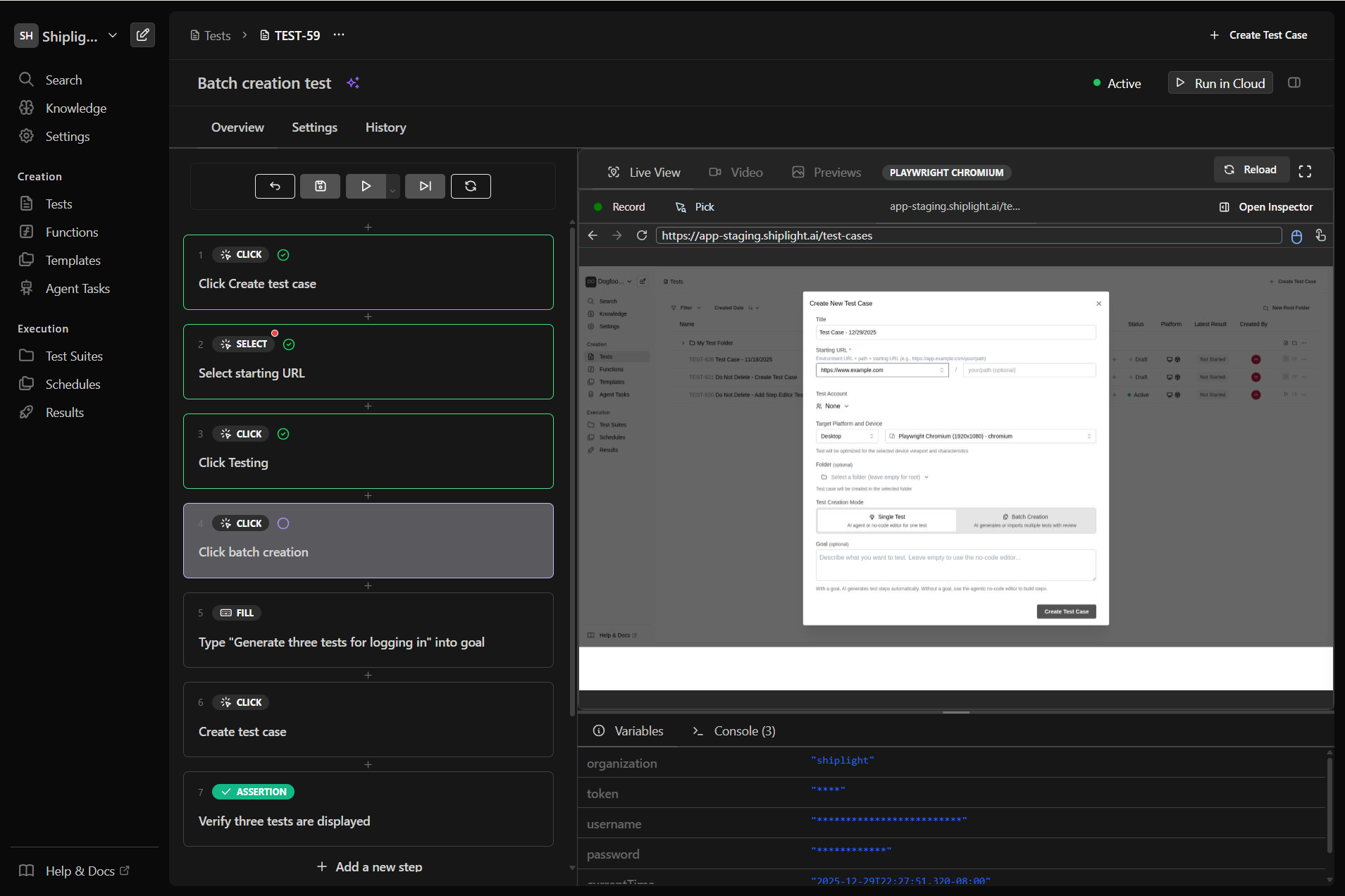
Header Section
The test editor header provides essential test information and controls:
- Test Name - Click to edit the test name inline
- Status Badge - Shows current test status:
Draft- In development, excluded from scheduled runsActive- Enabled for automated executionGenerating- AI is creating test steps
- Environment Selector - Choose which environment to run the test in
- Actions Menu - Additional options (clone, delete, export)
Main Editor Area
The editor is divided into two resizable panels:
Left Panel - Test Flow Editor
- Visual representation of your test steps
- Drag-and-drop step reordering
- Inline editing capabilities
- AI mode toggle for natural language input
- Nested structure support (steps, conditions, loops)
Right Panel - Live View & Information
- Live Tab - Real-time browser view during debugging
- Preview Tab - Screenshots from test execution
- Console Tab - Execution logs and debug output
- Context Tab - Current test variables and state
Test Structure
Test Flow
A test flow contains:
- Main Statements - Your primary test logic
- Teardown Statements - Optional cleanup steps
- Metadata - Goal, URL, and completion status
Step Types
Each step in your test can be one of these types:
Action Step - A single operation (click, type, assert, etc.)
- Contains the actual action to perform
- The leaf node of your test structure
Group - A container for multiple steps
- Groups related steps together
- Can be collapsed/expanded for organization
- Contains nested statements
If/Else Step - Conditional branching
- Evaluates a condition
- Executes different paths based on result
Loop Step - Repeating operations
- While loop that continues based on condition
- Contains body statements to repeat
Teardown Section
Optional cleanup steps that run after the main test:
- Always executes (even on test failure)
- Useful for resetting state
- Contains the same step types as main flow
- Separate from main statements
Key Features
Natural Language & Code Modes
Natural Language Mode (AI-Powered)
- Write test steps in plain English
- AI automatically converts to executable actions
- Ideal for non-technical users
- Context-aware suggestions
Code Mode (JavaScript)
- Direct Playwright code editing
- Full access to browser APIs
- Custom logic implementation
- Advanced automation scenarios
AI Mode vs Fast Mode
Fast Mode (Non-AI)
- Uses cached actions for optimal performance
- Executes pre-generated Playwright commands
- Best for stable DOM elements and consistent UIs
- Faster execution speed
- Relies on fixed element selectors/locators
- Less flexible but more performant
AI Mode (Dynamic Mode)
- Evaluates descriptions in real-time against current browser state
- Dynamically determines the best action and element to target
- Handles dynamic element IDs and changing locators
- More flexible and adaptive to UI changes
- Slower execution due to real-time analysis
- Ideal for modern web apps with dynamic content
Recording
Interactive Test Creation
- Record browser interactions in real-time
- Automatically captures clicks, typing, navigation, and form interactions
- Converts user actions into test steps automatically
- Available during debugging sessions via Live View toolbar
Benefits:
- Rapid test creation by performing actions naturally
- No need to write step descriptions manually
- Captures complex user workflows accurately
- Ideal for exploratory testing and reproducing bugs
Test Information Panels
Goal Section
- Document the test's purpose
- Editable at any time
- Used by AI for context
- Helps team understand test intent
Labels
- Organize tests with custom tags
- Filter and search by labels
- Apply multiple labels per test
- Color-coded for quick identification
Latest Run Results
- Last execution status
- Execution time and date
- Link to full run details
- Video recording (if available)
Editing Workflow
1. Adding Steps
Click "Add a new step" button to insert steps:
- Choose from action type dropdown
- Enter description or code
- Configure step-specific options
- AI auto-suggests next steps
Insert Between Steps using the + button:
- Maintains test flow
- Automatically adjusts numbering
- Preserves nested structure
2. Modifying Steps
Click the ⋯ menu on any step to access four groups of options:
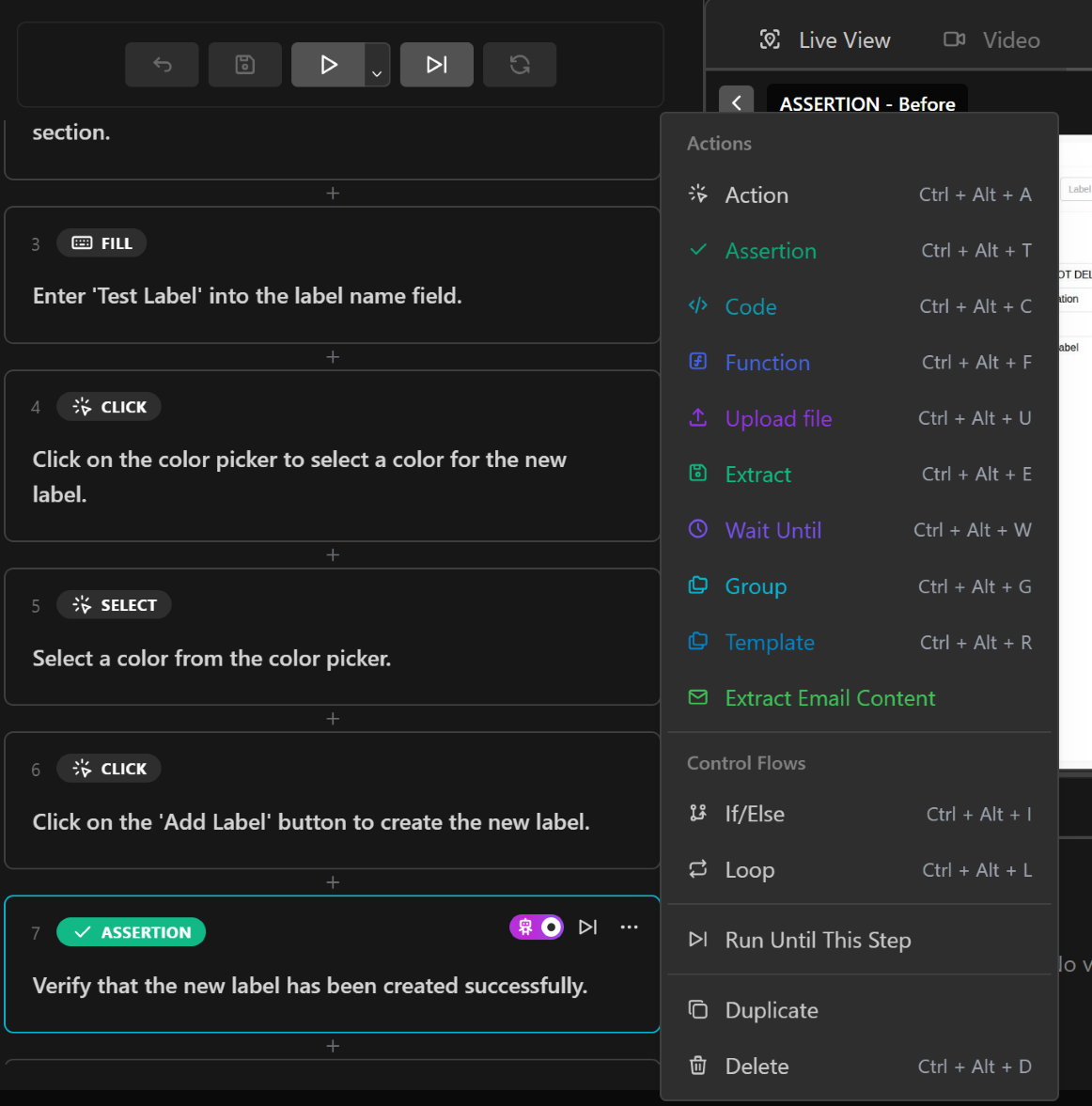
Actions - Convert to different action types:
- Action, Assertion, Code, Function, Upload File, Group
Control Flows - Convert to control structures:
- If/Else, Loop
Execution - Debug controls:
- Run until here
Edit Operations:
- Duplicate step
- Delete step
3. Organizing Steps
Drag and Drop to reorder:
- Visual indicators show valid drop zones
- Maintains parent-child relationships
- Updates references automatically
Group Related Steps:
- Create step containers
- Add descriptive group names
- Collapse/expand for clarity
- Nest multiple levels deep
Status Management
Test Status Types
Draft
- Development and testing phase
- Not included in scheduled runs
- Can still be run manually
- No notifications on failure
Active
- Production-ready test
- Included in test suites and schedules
- Triggers notifications on failure
- Monitored for reliability
Disabled
- Temporarily excluded from execution
- Preserves test configuration
- Quick re-enable when needed
- Useful for maintenance windows
Status Transitions
Toggle status using the dropdown in the header:
- Create test → Starts as
Draft - Complete development → Change to
Active - Maintenance needed → Set to
Disabled - Updates complete → Return to
Active
Best Practices
Test Design
✅ DO:
- Keep tests focused on single features
- Use descriptive step descriptions
- Add assertions to verify outcomes
- Implement proper wait strategies
- Use teardown for cleanup
❌ DON'T:
- Create overly complex test flows
- Hard-code environment-specific values
- Skip error handling
- Ignore flaky test warnings
- Duplicate test logic
Performance Tips
- Minimize Waits - Use smart waits instead of fixed delays
- Batch Operations - Group related actions together
- Reuse Functions - Extract common patterns
- Optimize Selectors - Use stable, efficient selectors
- Parallel Execution - Design tests for independence
Maintenance
- Regular Reviews - Update tests with UI changes
- Monitor Flakiness - Address intermittent failures
- Version Control - Save checkpoints before major changes
- Documentation - Keep goals and descriptions current
- Refactoring - Simplify complex flows periodically
Keyboard Shortcuts
When a statement is selected, you can use these shortcuts:
| Shortcut | Action |
|---|---|
Ctrl + Alt + A | Convert to Action |
Ctrl + Alt + T | Convert to Assertion |
Ctrl + Alt + C | Convert to Code |
Ctrl + Alt + F | Convert to Function |
Ctrl + Alt + U | Convert to Upload File |
Ctrl + Alt + E | Convert to Extract |
Ctrl + Alt + L | Convert to Login |
Ctrl + Alt + W | Convert to Wait Until |
Ctrl + Alt + G | Convert to Group |
Ctrl + Alt + R | Convert to Template |
Ctrl/Cmd + D | Duplicate statement |
Next Steps
- Configure Test Environments - Set up multiple configurations for different environments
- Learn about Actions & Steps - All available action types and how to use them
- Explore Recording - Interactive test creation
- Explore AI Features - AI-powered test creation and maintenance
- Master Debugging Tools - Interactive debugging and troubleshooting
- Discover Advanced Features - Variables, functions, and more